
How Fast Is MacDisplay? Real-World Mac-to-Mac 5K Latency Testing
When you use another Mac as a second monitor, resolution is only part of the experience. A 5K image can look perfect while nothing is moving. But the moment you move the pointer, drag a window, scroll through a webpage or play a video, another factor becomes just as important:
latency.
How long does it really take for something happening on the source Mac to appear on the Mac being used as a display? A significant part of MacDisplay development has focused on exactly that question.
But instead of relying exclusively on an internal latency counter, we decided to focus on something much simpler: what the user can actually see. For that, we use a straightforward and repeatable visual test. We call it the Clock Test.
The two photographed results: approximately 80 ms and 70 ms
Our current reference configuration is:
M4 Pro MacBook Pro → 2017 27-inch Retina 5K iMac
In the two Ethernet photographs published here, the clock on the Monitor Mac trails by approximately 80 ms in one direction and 70 ms in the other. These are two visual observations on this specific hardware, not an average, a guaranteed limit or a measurement that applies to every Mac and workload.
The number itself is not the most important part. The real question is: what does that delay actually look like to the person using the display? That is exactly what the Clock Test is designed to show.
Running the Clock Test several times will produce different readings: in our own tests, on the same pair of Macs, the visible offset ranged from about 80 ms up to 100-120 ms. It depends on several factors.
If you measure something different from us, it does not mean one of the two is wrong: it means you are measuring a different moment. That is exactly why we publish photographs of real runs instead of a single figure presented as definitive.
Our test configuration
The photograph accompanying this article was taken using:
- Source Mac
- MacBook Pro with Apple M4 Pro
- Monitor Mac
- 2017 27-inch Retina 5K iMac, Intel
- Receiver macOS
- macOS 13.7.8
- Resolution
- 5120 × 2880 Retina 5K
- Connection shown in the photograph
- wired Ethernet
- Application
- MacDisplay
- Mode
- extended desktop
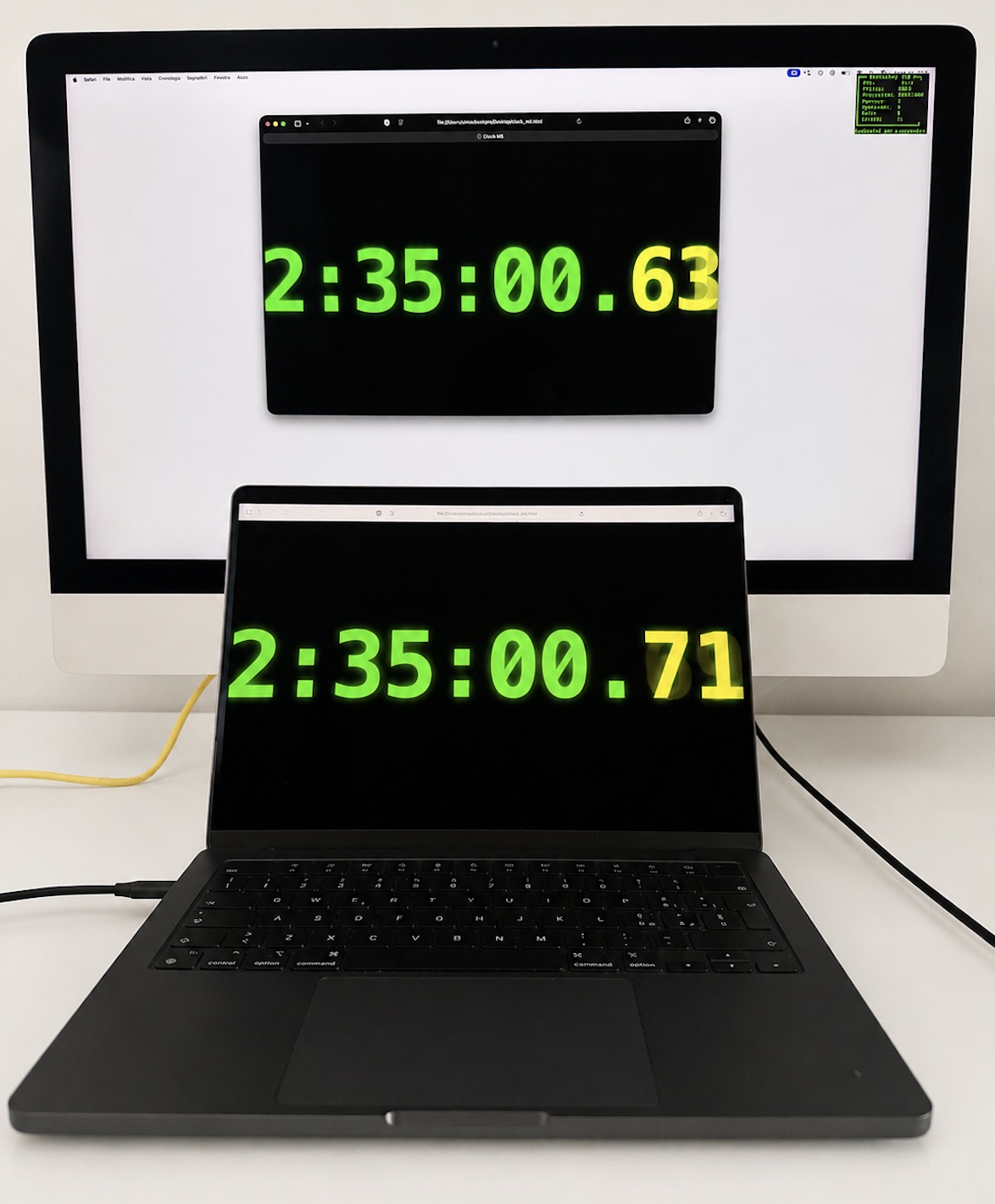 Δ ≈80 ms
Monitor Mac · iMac 5K 2017 · 2:35:00.63
Source Mac · MacBook Pro M4 Pro · 2:35:00.71
Δ ≈80 ms
Monitor Mac · iMac 5K 2017 · 2:35:00.63
Source Mac · MacBook Pro M4 Pro · 2:35:00.71
This is a real working configuration. The M4 Pro MacBook Pro generates the desktop. The 2017 Intel iMac receives it and becomes a 27-inch Retina 5K second display. In the Clock Test shown in the photograph, the visible offset between the two screens is approximately 80 ms.
It is also a perfect example of what MacDisplay was created to do. A modern Mac can continue to use one of the most valuable parts of an older iMac: its display.
Δ ≈80 ms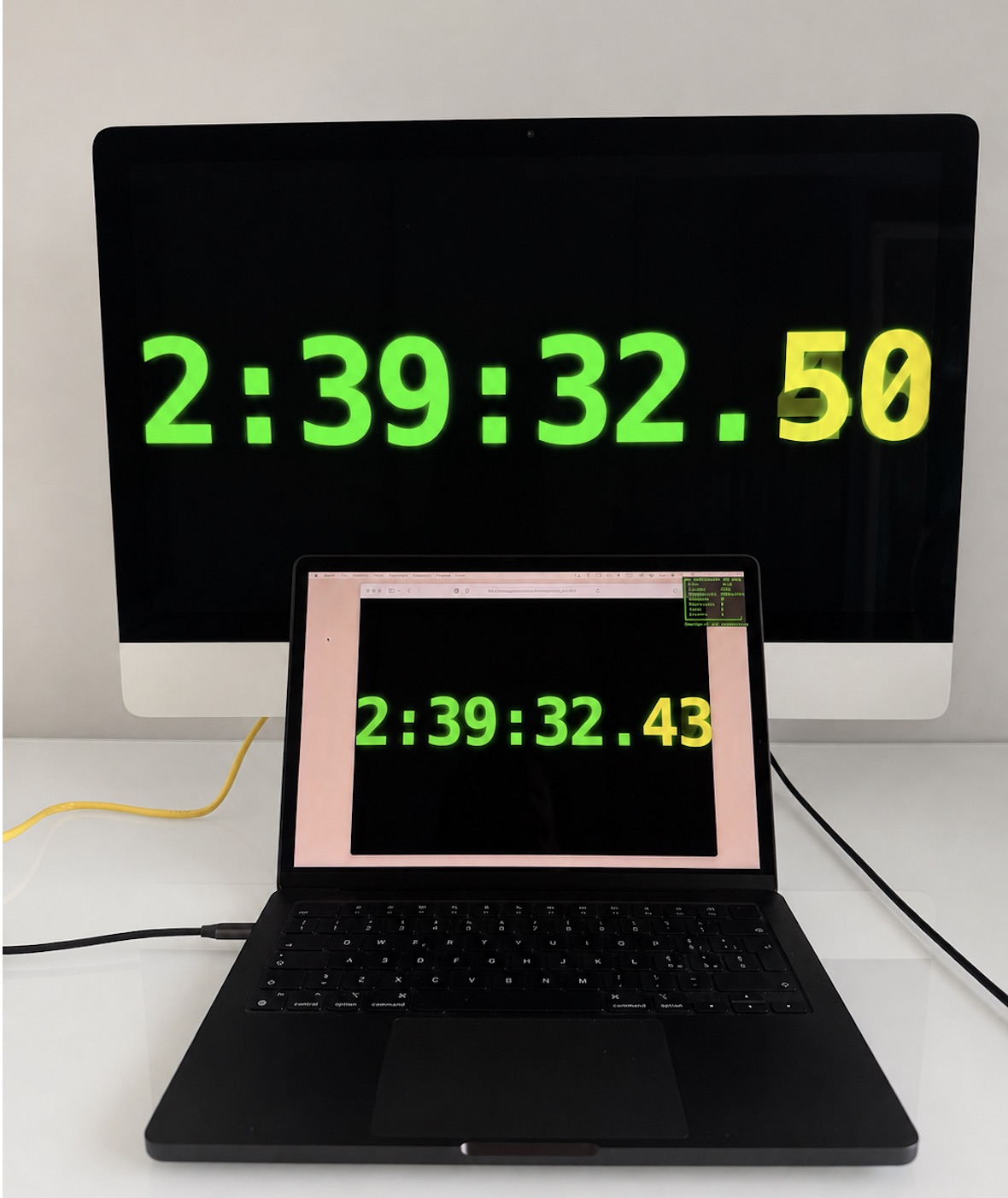 Δ ≈70 ms
What is the Clock Test?
The concept is deliberately simple. A clock displaying hours, minutes, seconds and hundredths of a second runs on the source Mac. The same content is simultaneously displayed on the Mac being used as the second monitor. Both displays are then photographed within the same frame.
The difference between the value shown on the source Mac and the value visible on the Monitor Mac provides a simple visual estimate of the total delay between the two screens. The Clock Test therefore does not ask:
“What latency value does the software report internally?”
“How far behind does the second display really look?”
It asks something much closer to the user's actual experience. That distinction matters.
Technical latency is not the same as visible latency
A display application can measure many different things.
Data transport time.
Frame processing time.
Communication time between the two computers.
Those numbers are extremely useful during software development. But any one of them, by itself, does not necessarily represent what a user eventually sees. The real experience includes the entire path:
source Mac → processing → connection → receiving Mac → final displayed image.
That final result is what matters when another Mac is being used as a monitor. This is why the Clock Test became such a useful development tool for MacDisplay. It does not replace technical measurements.
It complements them by answering a very simple question: does the final result actually look fast?
Is a photograph a scientific latency benchmark?
Not exactly. And we think it is important to be clear about that. The Clock Test is a real-world visual latency test, not a laboratory benchmark. Display refresh timing, the exact point at which each panel updates and camera behavior can introduce small variations between individual captures.
A controlled comparison should repeat the same test several times and report the spread of the results. The two photographs published here are reference observations, not a repeated benchmark series. In our own testing, however, Ethernet behaved very much like Thunderbolt: it is a fully capable connection, and one we recommend whenever Thunderbolt is not available.
If repeated captures remain close to one another and the desktop stays smooth during real use, the result becomes more meaningful. If they vary widely, the connection still needs investigation.
This is also why stability matters at least as much as the lowest recorded number.
What do the 70–80 ms photographs actually mean?
There is another important limitation of the Clock Test that should be made clear. The approximately 70 ms and 80 ms offsets shown here come from a relatively low-motion visual scenario. The clock itself is continuously updating, but the desktop is not simultaneously dealing with rapidly moving windows, complex animations or large areas of the screen changing every frame.
The two results should therefore be understood as visual reference observations under low-motion conditions, not as a claim that every frame in every workload will always reach the receiving display within that range.
When a window is dragged rapidly, a webpage is scrolled, video is playing or large portions of the screen are changing continuously, considerably more visual information must be processed and transmitted. Under those conditions, latency can increase and may vary depending on resolution, the performance of both Macs, the connection being used and the content on screen.
That is why we treat 70 ms and 80 ms as two reference readings, not the complete measure of MacDisplay performance.
A responsive native 5K Retina desktop is a useful starting point. The real challenge is maintaining that feeling once the screen starts moving.
For this reason, MacDisplay development does not rely on the Clock Test alone. We also drag windows, scroll content, play video and use the extended desktop under real workloads, because a great second display is not defined by the lowest number captured in a photograph — it is defined by how consistently smooth and responsive it remains while you actually use it.
Can you notice 70–80 ms?
Some people can, especially during fast pointer movement, window dragging or scrolling. This is not zero latency, and the Clock Test should not be presented as if it were.
Differences of ten or twenty milliseconds between individual runs can be difficult to judge by eye, while consistency and the absence of stutter often matter more during normal work. A second monitor needs to remain responsive while you:
- drag windows;
- scroll webpages;
- switch between applications;
- watch video;
- read small text;
- work across the full Retina 5K panel.
Our objective is not to produce one perfect benchmark frame. It is to preserve that sense of immediacy throughout normal use.
Why stability matters as much as latency
A low latency measurement is not very useful if the image constantly stutters. The same is true if text becomes soft while windows move, visual artifacts appear or image quality continually changes.
MacDisplay was never developed around a single objective such as: get the smallest latency number possible. The experience we are trying to create combines:
- low visible latency;
- consistent frame delivery;
- smooth movement;
- stable image quality;
- sharp text;
- native Retina resolution.
That combination is what makes a second Mac begin to feel like a display.
Not a remote desktop session.
Not simply a duplicated screen.
A real extended workspace.
And this is happening at native 5K
Our receiving display is not a conventional Full HD monitor. It is a 27-inch Retina 5K iMac running at 5120 × 2880.
That is almost 15 million pixels.
And the Mac rendering that incoming desktop is an Intel machine from 2017. That matters. As resolution increases, maintaining sharpness, smooth motion, stability and low latency becomes increasingly demanding.
With a compatible Apple Silicon source Mac, MacDisplay supports native resolutions up to 6K (under certain conditions even up to 8K, but that remains theoretical: it depends heavily on the performance of the two Macs involved). That means the Retina 5K panel can actually be used at its native 5120 × 2880 resolution.
So the goal is not simply: low latency. It is: low latency without sacrificing the Retina quality that makes the old iMac display worth reusing.
Ethernet and Thunderbolt: what these photographs show
MacDisplay can operate over Thunderbolt, Gigabit Ethernet or 5 GHz Wi-Fi. The two photographs in this article were taken over Ethernet.
They show that Ethernet can drive this real native 5K setup with visible offsets of approximately 80 ms and 70 ms in the two tested directions.
The photographs do not, by themselves, compare Ethernet with Thunderbolt or prove that the two connections always perform identically. That would require repeated, controlled measurements using the same direction, resolution, workload and hardware.
Results can change with Mac models, adapters, system load and network configuration. Different hardware may therefore produce different results.
“Ethernet is always faster than Thunderbolt.”
on this reference configuration, two Ethernet runs produced approximate visible offsets of 80 ms and 70 ms.
A connection should be judged through repeated measurements and real use, not by which one wins a single photograph.
The best benchmark? Try the software yourself
There are several ways to turn another device into a second display.
Some products support many operating systems.
Some work with tablets, phones and PCs.
Some require dedicated hardware.
MacDisplay deliberately focuses on a much narrower problem:
Mac-to-Mac.
One Mac becoming a high-quality second display for another Mac.
That specialization allows us to optimize around a very specific goal. We could publish a leaderboard claiming that one application is faster than another. We prefer a different approach.
Test them yourself.
Use the same two Macs.
The same cable.
The same resolution.
The same clock.
Take the same photograph.
Then drag windows, scroll pages, play video and use the desktop normally. Choose the experience that actually feels better. If a product is genuinely fast and stable, the difference should be visible without needing a marketing leaderboard.
Run the Clock Test yourself
You do not need specialist equipment.
- Connect your two Macs with MacDisplay.
- Use the second Mac as an extended display.
- Open our clock showing hundredths of a second on the source Mac.
- Display the same clock on the extended desktop.
- Position both screens so they are visible at the same time.
- Take a photograph containing both displays.
- Compare the values.
- Repeat the test several times.
But do not stop at the photograph.
Move windows.
Scroll.
Work normally for a few minutes.
A second monitor should not simply perform well in a benchmark.
It should disappear into your workflow.
When you stop thinking about the connection between the two Macs and simply start using the second screen, the software is doing its job.
Test the performance before paying
This is also why MacDisplay has a free version that does not expire.
No account is required.
No credit card is required.
You can install MacDisplay on your own Macs and test:
- image quality;
- smoothness;
- stability;
- resolution;
- latency;
- performance over your preferred connection.
The free version currently allows sessions of up to 10 minutes, with a short cooldown between sessions and up to 60 minutes of total use every 24 hours. That means you do not need to trust a benchmark published by us.
You can answer the only question that really matters: How fast is MacDisplay on my Macs? We would rather let the product answer that question.
Be excellent at one thing first. Then build the rest.
MacDisplay is deliberately specialized today. There are products designed to connect Macs, PCs, tablets, smartphones and many other types of devices while offering a very broad feature list. We chose a different path.
We would rather do one thing exceptionally well before trying to do ten things reasonably well. That is why the first objective for MacDisplay has been extremely specific: turn one Mac into a genuinely great second display for another Mac. Not simply make an image appear on another screen. But deliver: native resolution, sharp visuals, smooth motion, stability and low visible latency.
Every additional feature inevitably increases software complexity. So we prefer to introduce new capabilities progressively, after they have been developed, tested across different hardware configurations and optimized until we are satisfied with the result.
That does not mean MacDisplay will remain limited to the features it has today. Quite the opposite. Development continues, and new capabilities will come. But we do not want to add a feature simply to put another checkmark on a comparison table. We want to add it when we are happy with how it works.
Recent releases have already improved motion, connection stability, resource usage on receiving Macs, wired and wireless performance and automatic display detection. We intend to continue in exactly the same way.
One capability at a time.
Test it.
Optimize it.
Then build the next one.
Because MacDisplay was not created to be the application that does the most things.
It was created to do the things it does exceptionally well.
Where MacDisplay is going
MacDisplay is still a young product. That also means we can continue improving it quickly. But the core philosophy will remain unchanged:
- Native resolution.
- Stable image quality.
- Smooth motion.
- Low visible latency.
- Minimal setup.
If you have two Macs, you do not need to simply take our word for it.
Download MacDisplay for free.
Run the Clock Test.
Use it in your real workflow.
And judge the result with your own eyes.
Frequently Asked Questions
What latency do the MacDisplay photographs show?
On our M4 Pro MacBook Pro and 2017 Retina 5K iMac reference setup, the two published Ethernet photographs show approximate visible offsets of 80 ms and 70 ms. These are two visual observations, not an average or a guaranteed limit. Results vary with hardware, connection, display configuration and workload.
Has MacDisplay become faster than previous versions?
The two photographs document the current reference setup, but they are not enough by themselves to quantify an improvement over earlier versions. A reliable comparison requires repeated tests performed with the same hardware, settings and method.
Is Ethernet slower than Thunderbolt with MacDisplay?
MacDisplay supports Ethernet and Thunderbolt, but the photographs on this page document Ethernet: on their own they cannot establish which connection is faster. In our own testing Ethernet behaved very much like Thunderbolt, and it is a connection we recommend whenever Thunderbolt is not available.
Was the test shown in the article performed over Ethernet?
Yes. The photographs show an M4 Pro MacBook Pro and a 2017 Retina 5K iMac connected over Ethernet. The visible offsets are approximately 80 ms in one direction and 70 ms in the other.
Can MacDisplay use a 2017 iMac at native 5K?
Yes. With a compatible Apple Silicon source Mac, MacDisplay can use the Retina 5K panel at its native 5120 × 2880 resolution.
What does the Clock Test measure?
It provides a simple visual estimate of the complete delay between the source Mac and the image ultimately displayed on the Monitor Mac.
Is the Clock Test a laboratory benchmark?
No.
It is a real-world visual test. The clock displays hundredths of a second, so readings have a 10 ms resolution; panel refresh timing and the camera introduce further uncertainty. The results are visual estimates, not laboratory measurements.
Do the 70–80 ms photographs also describe moving windows or video?
Not necessarily.
The photographs were taken in a relatively low-motion Clock Test. When large areas of the display change continuously, processing requirements increase and visible latency can vary. MacDisplay is therefore also evaluated with window movement, scrolling, video and everyday desktop use.
Can I test MacDisplay before purchasing?
Yes. MacDisplay's free version does not expire and requires neither an account nor a credit card.
Where can I find a clock for the test?
We provide a free one. It opens in your browser, needs no installation and works offline too. Open it on the Mac that sends the picture, not on the Mac used as a display: those would be two different system clocks.
MacDisplay Published 6 September 2026